

Something feels off. Your computer is acting strangely, a coworker just clicked a suspicious link, or an email made your stomach drop. You don’t work in IT, and right now you’re not sure what you’re supposed to do.
Here’s the good news: you don’t need technical skills to make a real difference. What happens in the first 30 minutes after a suspected cyberattack often decides whether it becomes a small, contained problem or a serious one. This guide gives office managers, front-desk staff, and small business owners a simple, step-by-step plan.
Why the First 30 Minutes Matter
When an attack starts, your IT provider usually isn’t in the room. You are. Many employees freeze because they worry about getting in trouble or making things worse. That hesitation gives an attacker time to spread.
If your organization has shared this guide with staff, following it is following the plan. You don’t need to wait for permission to take these steps.
What Counts as a Suspected Attack
You don’t need to be certain before you act. Treat any of these as a reason to follow this checklist:
- You clicked a link or opened an attachment that seemed off
- Your computer started behaving strangely after opening something
- A password reset request appeared that you didn’t ask for
- A message on screen is demanding payment to unlock your files
- Files are disappearing, renamed, or won’t open
- A coworker suddenly can’t reach shared files
Responding to a false alarm costs you a few minutes. Waiting on a real attack can cost far more.
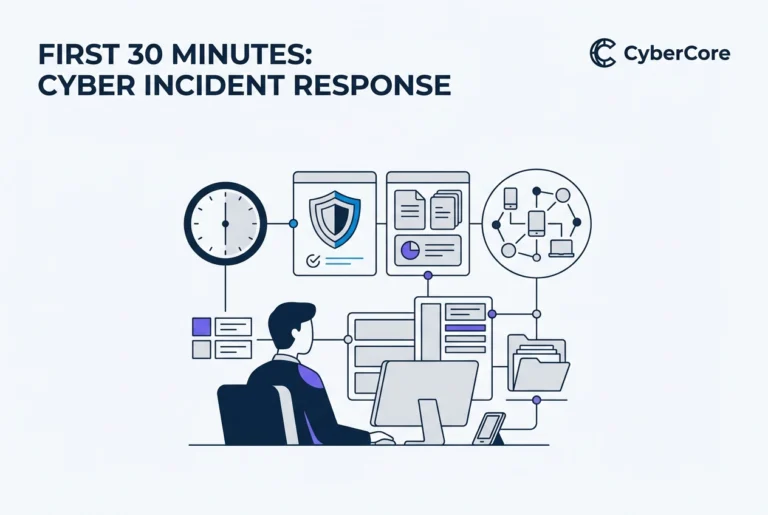
Minutes 0 to 5: Stop and Disconnect
Stop clicking. Take your hands off the keyboard and mouse. Every additional click can make things worse or erase clues your IT provider needs.
Disconnect from the network. Turn off Wi-Fi or unplug the network cable. Closing the browser isn’t enough. Disconnecting keeps a problem on one computer from spreading to others.
Leave the computer on. Don’t shut it down or restart it. Turning it off can destroy information that helps your IT provider figure out what happened.
Leave suspicious emails where they are. Don’t delete them or move them to junk. Your IT provider will want to examine them.
Minutes 5 to 15: Write Down What Happened
Using paper or your phone, not the affected computer, write down:
- The time you first noticed something was wrong
- What you were doing and what you clicked or opened
- Any messages, pop-ups, or strange behavior you saw
- The sender and subject line of any suspicious email
- Whether other computers or shared drives seemed affected
If something unusual is on the screen, take a photo of it with your phone. Screens can change, and a photo captures exactly what you saw.
Minutes 15 to 30: Notify and Hand Off
Contact your IT provider right away. Use whatever method they’ve given you for urgent issues, and use a device that wasn’t affected. Don’t send email from the computer you’re concerned about. Have your notes ready, since they’ll ask what happened and when.
Tell your manager or the business owner. Don’t assume your IT provider will handle internal communication. Leadership may need to make decisions about notifying staff, clients, or others.
Check nearby devices. If a coworker’s computer started acting strangely at the same time, follow the same disconnect-and-document steps for that device.
Don’t try to fix it yourself. Avoid running cleanup tools, logging into other accounts from the affected computer, or discussing the situation outside your organization until your IT provider says it’s okay.
The “Don’t Delete” Rule
The instinct to clean up is natural, but it works against you. That suspicious email, the strange files, and the error messages are evidence. Your IT provider uses them to learn how the attacker got in, what they may have accessed, and how to prevent a repeat.
For regulated organizations, evidence also matters for another reason. Healthcare practices, financial businesses, and others may have legal obligations to investigate and document incidents, and that evidence helps determine whether any notification is required. Leave everything as it is until your IT provider tells you how to proceed.
Why a Written Checklist Helps With Compliance
Regulations like HIPAA require organizations to have procedures for identifying and responding to security incidents. A checklist that staff know about and actually follow is part of showing your organization took reasonable, prompt action. Organizations with specific requirements under HIPAA, the FTC Safeguards Rule, or PCI DSS should build a complete, tested incident response plan with their IT provider and legal counsel. This checklist covers the first steps your staff take.
Print This and Keep It Handy
Minutes 0 to 5: Disconnect
- Stop clicking
- Turn off Wi-Fi or unplug the network cable
- Leave the computer on
- Don’t delete the suspicious email
Minutes 5 to 15: Document
- Write down what happened and when
- Photograph anything unusual on the screen
Minutes 15 to 30: Notify
- Contact your IT provider from an unaffected device
- Tell your manager or the owner
- Check nearby computers for the same symptoms
IT provider contact: ______________________
Share this with every staff member before they need it, and make sure everyone knows how to reach your IT provider in an emergency.
Preparing Before It Happens
The best time to plan for an incident is before one happens. Security awareness training helps staff recognize threats early, and continuous monitoring can catch problems even when no one notices anything unusual.
CyberCore Technologies helps small businesses across Des Moines and central Iowa prepare staff, document response procedures, and monitor systems around the clock. If you’d like help getting your team ready, we offer a free assessment and are glad to talk whenever it’s helpful.